
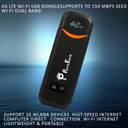

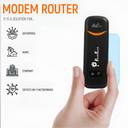
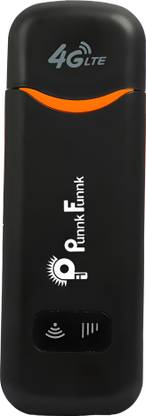
PunnkFunnk Data card 4G LTE Wireless USB Dongle Stick with All SIM Network Support 7.2 Mbps Data Card ,Calls not Supported

PunnkFunnk Data card 4G LTE Wireless USB Dongle Stick with All SIM Network Support 7.2 Mbps Data Card ,Calls not Supported (Black)

Price: Not Available
Currently Unavailable
Warranty
3 Months Warranty from the Date of Purchase
Highlights
  • Device Throughput: Upto 7.2 Mbps
  • SIM, 3G Sim, 4G Sim
Description
5G Sim Support But NOT 5G Network Exact 4G Speed This 4G USB Modem has two modes: Wi-Fi mode and Modem mode (Wi-Fi mode and Modem mode can work at the same time). 1. You can share the 4G USB Modem' s Wi-Fi as long as you plug it to a comput-er, car charger, cellphone adapter or any other USB power adapter (should be 5V/1A ~ 5V/3A). 2. When you plug it to a computer, it can work as a Modem, enabling your computer to access to the internet automatically after 30-45 seconds (no need to install any software driver manually); and at the same time, it generates Wi-Fi for up to 10 devices to share. Part 1: How to access to internet? 1, Insert SIM Card (Note: Use the big SIM, the 2FF SIM. Not micro SIM, not Nano SIM) 2, Power on and share its Wi-Fi Plug the 4G USB Modem to your computer, cellphone adapter or any other USB power adapter(should be 5V/1A ~ 5V/3A), wait for 30-45 seconds till it is powered on completely, then you can share its Wi-Fi.
Read More
Specifications
In The Box
  • 1 Dongle, 1 User Manual, 1 Warranty Card
General
Model Name
  • Data card 4G LTE Wireless USB Dongle Stick with All SIM Network Support
Device Throughput
  • Upto 7.2 Mbps
Voice Support
  • No Call Support
SMS Support
  • No
Operating System
  • Windows 7, Windows 8, Windows 8.1, Windows 10 (Note: Does not support windows RT), Mac OS X 10.9, 10.10, 10.11 and 10.12 with latest upgrades
Power Souce
  • Input
External Interface
  • USB 2.0
Key Features
  • Please check the backside case for SSID and passwords: Default Wi-Fi Name/SSID:4G-UFI-xxxx Default Password: 1234567890, Part 3: How to Change SSID/ Password? Step1. Plug in the 4G USB Modem to a computer, or connect to the 4G USB Modem's Wi-Fi with a computer., Step2. Browse 192.168.100.1 then Login (Password: admin), Step3. WIFI AP Settings>> input New SSID/Password >>modify Note:You can click the"Wifi Switch " and "SSID broadcast" to turn on/off the wifi function., Part 4: How to add APN? This 4G USB Modem can detect APN automatically. if cannot access to internet but signals are available, maybe the APN of your SIM card is not captured in the 4G USB Modem, you can add your APN as follows, :Part 5: Overview page and Other functions: You can check the device's status on the overview page as follows, Part 6: How to do if you forget Wi-Fi password/SSID?
Dimensions
Width
  • 20 mm
Height
  • 100 mm
Weight
  • 50 g
Warranty
Warranty Service Type
  • Carry in or contact us -Direct call us at the branch office Toll free No. ?+91 11 4167 5188?
Domestic Warranty
  • 3 Months
Warranty Summary
  • 3 Months Warranty from the Date of Purchase
Covered in Warranty
  • Manufacturing Defects
Not Covered in Warranty
  • Physical & Water Damage
Product Details
Color
  • Black
SIM or UIM Support
  • SIM, 3G Sim, 4G Sim
Network Type
  • LTE, UMTS, HSPA, HSPA+, DC-HSPA+
HSUPA
  • LTE FDD (DL) data service of up to 100 Mbps, LTE FDD (UL) data service of up to 50 Mbps, LTE TDD (DL) data service of up to 112 Mbps, LTE TDD (UL) data service of up to 10 Mbps, DC-HSPA+ downlink data service of up to 42 Mbps, HSPA+ downlink data service of up to 21 Mbps, HSDPA data service of up to 14.4 Mbps, HSUPA data service of up to 5.76 Mbps, WCDMA data service of up to 384 Kbp
Other System Requirements
  • Step 1: Plug in the 4G USB Modem to a computer, wait for 30-45 seconds till it is powered on completely, Step2. Browse 192.168.100.1 then Login (Password: admin), Step3. Advance Settings>>other>>facto-ry reset, Stept4. Wait for 10 seconds till 4G USB modem restart,then the SSID and password will be resetted to the default SSID and password.
Installation Features
  • Plug & Play, Auto Installation
Other Features
  • Warning, 1) Do not drop, disassemble, open, crush, bend, deform, puncture, shred, microwave, incinerate, paint, or insert foreign objects into the 4G USB Modem., 2) Avoiding Water and Wet Locations Do not use this 4G USB Modem in rain, or near washbasins or other wet locations., Don't worry about this dongle. If the network of dongle is not working as soon as you connect then don't worry, you can call us directly, we will guide you.
Ratings & Reviews
2.9
9 Ratings &
1 Reviews
  • 5
  • 4
  • 3
  • 2
  • 1
  • 4
  • 0
  • 0
  • 1
  • 4
5

Mind-blowing purchase

Best product
READ MORE

Flipkart Customer

Certified Buyer, New Delhi

Dec, 2024

3
1
Report Abuse
Questions and Answers
Q:Will support in car ... For wifi
A:yes
BellstarTradingPvtLtd
Flipkart Seller
0
0
Report Abuse
Q:Does it work with bsnl 3g
A:no
BellstarTradingPvtLtd
Flipkart Seller
0
0
Report Abuse
Q:Does it support idea SIM card
A:yes
BellstarTradingPvtLtd
Flipkart Seller
0
0
Report Abuse
Q:Does it support BSNL 4G sim card?
A:no
BellstarTradingPvtLtd
Flipkart Seller
0
0
Report Abuse
Q:will it support for windows 11
A:yes
BellstarTradingPvtLtd
Flipkart Seller
0
0
Report Abuse
Didn't get the right answer you were looking for
Safe and Secure Payments.Easy returns.100% Authentic products.
You might be interested in
Security Cameras
Min. 50% Off
Shop Now
Memory Cards
Min. 50% Off
Shop Now
Laptop Accessories
Min. 50% Off
Shop Now
Pen Drives
Min. 50% Off
Shop Now
Back to top