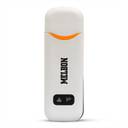
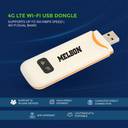
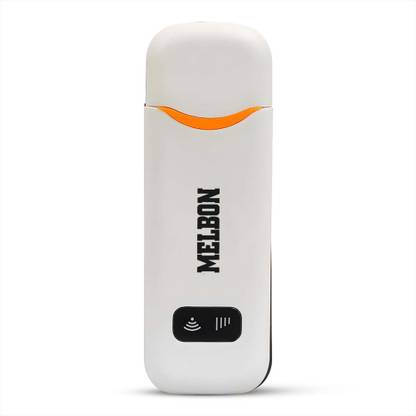
Melbon 4G LTE Wireless USB Dongle Stick with All SIM Network Support 7.2 Mbps Data Card ,Calls not Supported

Melbon 4G LTE Wireless USB Dongle Stick with All SIM Network Support 7.2 Mbps Data Card ,Calls not Supported (White)

Share

Melbon 4G LTE Wireless USB Dongle Stick with All SIM Network Support 7.2 Mbps Data Card ,Calls not Supported  (White)

3.5
48 Ratings & 3 Reviews
Special price
₹1,259
2,999
58% off
i
Available offers
  • Bank OfferFlat ₹50 off on Flipkart Bajaj Finserv Insta EMI Card. Min Booking Amount: ₹2,500
    T&C
  • Bank Offer5% cashback on Axis Bank Flipkart Debit Card up to ₹750
    T&C
  • Bank Offer5% cashback on Flipkart Axis Bank Credit Card upto ₹4,000 per statement quarter
    T&C
  • Special PriceGet extra 10% off
    T&C
  • Warranty
    3 Months Warranty from the Date of Purchase
    Delivery
    Check
    Enter pincode
      Delivery by8 Jan, Thursday
      ?
    View Details
    Highlights
    • Device Throughput: Upto 7.2 Mbps
    • Expandable Memory Capacity: 4 GB
    • 4G Sim
    Services
    • 3 Months Warranty from the Date of Purchase
    • Cash on Delivery available
      ?
    Seller
    IRC INNOVATIONS
    3.9
    • 7 Days Return Policy
      ?
  • See other sellers
  • Description
    ----- BSNL Sim Not working---- 5G Sim Support But NOT 5G Network Exact 4G Speed This 4G USB Modem has two modes: Wi-Fi mode and Modem mode (Wi-Fi mode and Modem mode can work at the same time). 1. You can share the 4G USB Modem' s Wi-Fi as long as you plug it to a computer, car charger, cellphone adapter or any other USB power adapter (should be 5V/1A ~ 5V/3A). 2. When you plug it to a computer, it can work as a Modem, enabling your computer to access to the internet automatically after 30-45 seconds (no need to install any software driver manually); and at the same time, it generates Wi-Fi for up to 10 devices to share. Part 1: How to access to internet? 1, Insert SIM Card (Note: Use the big SIM, the 2FF SIM. Not micro SIM, not Nano SIM) 2, Power on and share its Wi-Fi Plug the 4G USB Modem to your computer, cellphone adapter or any other USB power adapter(should be 5V/1A ~ 5V/3A), wait for 30-45 seconds till it is powered on completely, then you can share its Wi-Fi.
    Read More
    Specifications
    In The Box
    • T708 DONGLE, User Manual
    General
    Model Name
    • 4G LTE Wireless USB Dongle Stick with All SIM Network Support
    Device Throughput
    • Upto 7.2 Mbps
    Voice Support
    • No Call Support
    Expandable Memory Capacity
    • 4 GB
    Phone Book Support
    • No
    SMS Support
    • No
    Memory Card Slot Support
    • no
    Operating System
    • All windows
    Power Souce
    • DC
    GPRS
    • 150Mbps
    External Interface
    • USB port: The USB port is used to connect the dongle to a computer. SIM card slot: The SIM card slot is used to insert a SIM card. LED indicator: The LED indicator shows the status of the dongle LED indicator: The LED indicator shows the status of the dongle..
    Key Features
    • Please check the backside case for SSID and passwords: Default Wi-Fi Name/SSID:4G-UFI-xxxx, Default Password: 1234567890 Part 3: How to Change SSID/ Password?, Step1. Plug in the 4G USB Modem to a computer, or connect to the 4G USB Modem's Wi-Fi with a computer., Step2. Browse 192.168.100.1 then Login (Password: admin), Step3. WIFI AP Settings>> input New SSID/Password >>modify, Note:You can click the"Wifi Switch " and "SSID broadcast" to turn on/off the wifi function., Part 4: How to add APN? This 4G USB Modem can detect APN automatically. if cannot access to internet but signals are available, maybe the APN of your SIM card is not captured in the 4G USB Modem, you can add your APN as follows, :Part 5: Overview page and Other functions: You can check the device's status on the overview page as follows, Part 6: How to do if you forget Wi-Fi password/SSID?
    Dimensions
    Width
    • 30 mm
    Height
    • 80 mm
    Weight
    • 50 g
    Warranty
    Warranty Service Type
    • Direct reach on bellstartrading2012@gmail.com
    Domestic Warranty
    • 3 Months
    International Warranty
    • 1 Months
    Warranty Summary
    • 3 Months Warranty from the Date of Purchase
    Covered in Warranty
    • Manufacturing Defects
    Not Covered in Warranty
    • Physical Damage
    Product Details
    Color
    • White
    SIM or UIM Support
    • 4G Sim
    Indicator
    • LED Indicator Meaning Solid blue light The dongle is plugged in and connected to the internet. Blinking blue light The dongle is searching for a signal. Solid red light The dongle is not plugged in or it is not connected to the internet
    Network Type
    • 4,5G
    Form Factor
    • USB Dongle, Wi-Fi Dongle, Foldable Dongledongle is a small, USB-shaped device that plugs into the headphone jack of your device to allow you to use wireless headphones with it. It is available in two different form factors: a standard USB-A dongle and a USB-C dongle.
    UMTS 3G BW
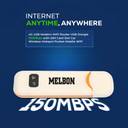
    • 150Mbps DL/50Mbps UL-(with Double External Antennas)
    Edge
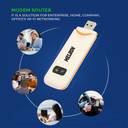
    • Dongle Edge is a 4G LTE WiFi USB dongle stick that supports all SIM networks. It has a plug-and-play design and can provide up to 150Mbps data speeds. The dongle is also small and lightweight, making it easy to carry with you.
    HSUPA
    • LTE FDD (DL) data service of up to 100 Mbps
    Other System Requirements
    • Step 1: Plug in the 4G USB Modem to a computer, wait for 30-45 seconds till it is powered on completely, Step2. Browse 192.168.100.1 then Login (Password: admin), Step3. Advance Settings>>other>>facto-ry reset, Stept4. Wait for 10 seconds till 4G USB modem restart,then the SSID and password will be resetted to the default SSID and password.
    Installation Features
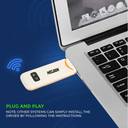
    • Plug & Play, Auto Installation, Dongle is small and lightweight, making it easy to take with you on the go., Dongle uses WPA2 encryption to protect your data from unauthorized access
    Other Features
    • Default Password: 1234567890 Part 3: How to Change SSID/ Password?, 1) Do not drop, disassemble, open, crush, bend, deform, puncture, shred, microwave, incinerate, paint, or insert foreign objects into the 4G USB Modem., 2) Avoiding Water and Wet Locations Do not use this 4G USB Modem in rain, or near washbasins or other wet locations., Don't worry about this dongle. If the network of dongle is not working as soon as you connect then don't worry, you can call us directly, we will guide you.
    Ratings & Reviews
    3.5
    48 Ratings &
    3 Reviews
    • 5
    • 4
    • 3
    • 2
    • 1
    • 23
    • 5
    • 5
    • 2
    • 13
    1

    Unsatisfactory

    Not warking other network 🛜 only airtel sim card
    READ MORE

    Harpreet Singh

    Certified Buyer, Jalandhar

    9 months ago

    0
    0
    Report Abuse
    1

    Worthless

    Very bad
    READ MORE

    BIMALENDU BIKASH ROY

    Certified Buyer, Birbhum District

    10 months ago

    1
    0
    Report Abuse
    4

    Pretty good

    Perfect
    READ MORE

    Amar Raj

    Certified Buyer, Munger District

    Dec, 2024

    0
    1
    Report Abuse
    Be the first to ask about this product
    Safe and Secure Payments.Easy returns.100% Authentic products.
    You might be interested in
    Security Cameras
    Min. 50% Off
    Shop Now
    Memory Cards
    Min. 50% Off
    Shop Now
    Laptop Accessories
    Min. 50% Off
    Shop Now
    Pen Drives
    Min. 50% Off
    Shop Now
    Back to top